

Insights
Handy, bitesize video tutorials on how Smarthub works, from starting out to features you want more info about.
Handy, bitesize video tutorials on how Smarthub works, from starting out to features you want more info about.

Learn all of Smarthub, broken down into step-by-step guides, taking you through each and every tool in the system.

Up to date news and information on Siso, Smarthub and everything equipment, resource and inventory management.

An introduction to our Customer Help Centre.

An introduction to our knowledge base and how to submit and view support tickets.

Want to know what we've been working on in your Smarthub system? Click below to find the release notes from all the recent updates.

All the functions and tools of the Smarthub system listed, with links to articles on how to use them.
Yes, we currently offer two web apps: one for everyday users to book assets (Smarthub App) and one for Administrators/Technicians.
From Smarthub version 6.1 onwards, users can install our booking web app directly from their browser. You should see helper tips to install the web app on your device when you first log in, but can otherwise find the instructions by clicking the phone  icon at the top left of your account menu.
We previously used a mobile app available from the Google Play and iOS App stores. Users who have these installed can continue to use them, but we recommend you uninstall them before installing the web app.
The app allows users to make bookings, subscribe to training workshops, submit risk assessments and much more on the go anywhere, anytime.
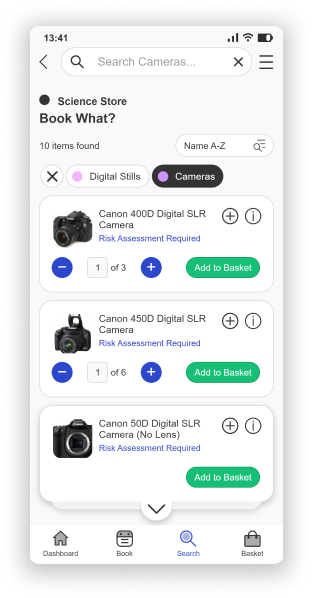
We also offer an Admin App which can be downloaded from inside your Smarthub system via Default Settings - APP Settings.
From here you will find a download link where you can install the admin app. You will also have to create an app account from this page.
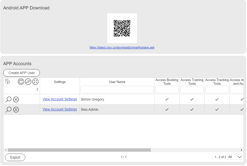
From version 6.1 onwards, there is also an admin web app found in the same part of Default Settings that is available for both Android and iOS.
The admin app allows you to quickly check assets in and out, arrange maintenance, and edit assets all from your mobile.
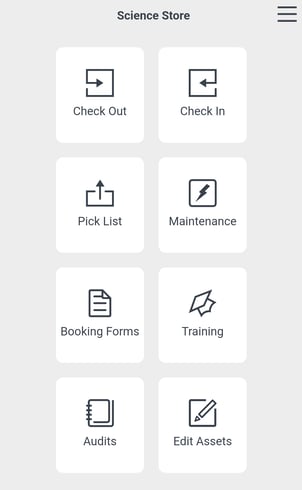
For more information regarding the mobile apps we offer, please submit a support ticket or contact us via [email protected]
Thanks to our data importer tool and dedicated account managers, our system facilitates a stress free setup process.
Assets, Users, Courses and more can be uploaded using our premade templates allowing a rapid transition from installation to the system being ready to go.
To find out how to quickly upload assets using our import wizard visit the link below:
An asset in the Smarhub system is anything you want to add as inventory.
Firstly we separate assets into 'Stock' and 'Rooms'.
Rooms are separate from locations as within Smarthub the location is the area of storage or navigation. A room as an asset is a bookable space.
Within Smarthub there are different ways to bring together or segregate instances of the system for easier navigation, particularly if you have more than one system. One of these ways is Stores.
We refer to a Store in the system as a subset of assets and the rules, permissions and times relating to those assets. This can be useful if you have separate physical sites (such as offices or campuses), where users may be able to access different equipment and facilities depending on the site.
New stores can be added by going to Admin > Manage Store & Times.
Please note that creating and adding assets to a new store will increase your payment levels for Smarthub.
We offer a number of third-party integrations ranging from timetabling software to locker systems.
New integrations are always considered if we don't currently have them.
Using our custom API, our platform can communicate with numerous third-party software applications.
We currently offer integrations with:
Yes, our system supports a variety of SSO providers so there is no need to create a plethora of new login credentials.
Currently we offer SSO integrations with:

For more information on how we use Authentication within our system check out our other article:
Importing Data and Authentication
If you would like to arrange implementation of SSO on your system use the link below to book in a meeting. You must ensure you have a member of your IT team present at the meeting.


First, try a hard refresh.
This can be done by pressing Ctrl + F5 on Windows or Command + Shift + R on Mac.
This action clears the cache for the specific page you're on and forces the browser to load the most recent version of the page.
A hard refresh is often needed following a new system update.
If you are still experiencing issues after trying this, then please submit a support ticket to get in touch with a member of our team.
A 500 Error may indicate a problem with the server hosting Smarthub. This is also a common error after a system update has taken place.
This error can usually be resolved by doing a hard refresh on the page (Ctrl + F5 on Windows or Command + Shift + R on Mac).
If the problem persists, contact our support team with the error details.
Check your internet connection first. If it's stable and other websites are loading quickly, try closing unnecessary tabs or restarting your browser.
We also recommend regularly purging any documentation that may exist on the system as this can sometimes cause bloating. To do this go to Admin > Default Settings > Risk Assessments, and find 'Purge Risk Assessment Uploads'. From here you can remove unused files or set uploads to delete after a set amount of time.

If the issue continues, it might be a problem with the application server, and you should report it to a member of our support team by clicking here.
This could be due to your browser caching the page. Try a hard refresh (Ctrl + F5 on Windows or Command + Shift + R on Mac) to see if that resolves the issue.
If not, there might be a syncing issue with the server, and you should contact our support team by clicking here.
If you come across a booking that doesn't appear in Manage Bookings or Booking History but is visible in either the Scheduling Chart or the Booking Calendar and you cannot edit or remove it, it may be a Masked Booking.
To check this go to Booking Management>Booking Importer.
Scroll down until you see View Masked Bookings
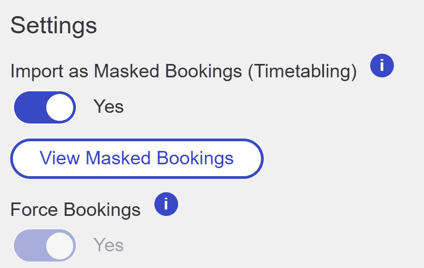
If it is a masked booking you should see it here and be able to delete it.
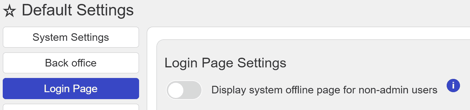
If your users are being shown this message
"The system is currently undergoing maintenance. Sorry for the inconvenience, this service will be running again soon."
and you are not in the process of a system update, check the below setting in Admin > Default Settings > Login Page
Yes, there are more explanitory FAQ's in our Knowledge Base - click here